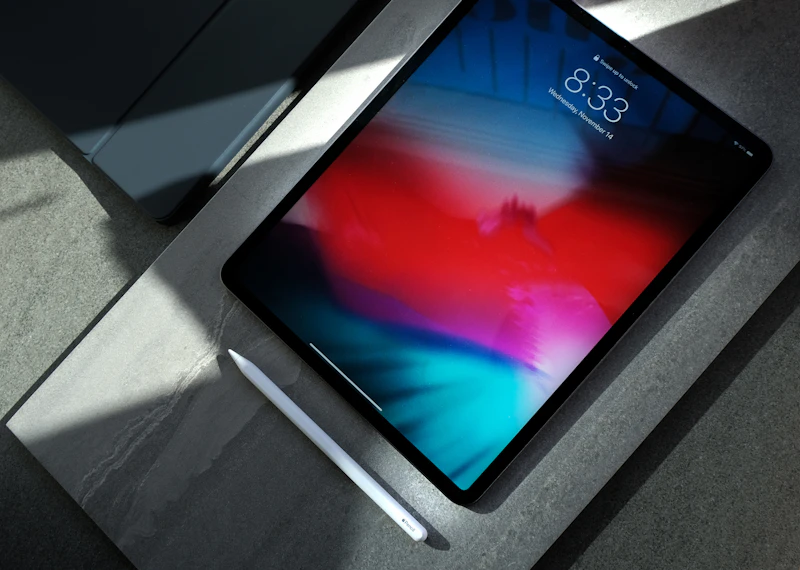
Any iPad becomes a teleprompter in about two minutes: install a prompter app, put the iPad as close to your lens as your setup allows, and read. The screen is big enough to read from across a room, which is exactly why pros mount iPads in teleprompter rigs. Here are the three setups that cover every situation, from free to studio-grade.
I build VoicePrompter, which is the app I'll reference for the steps, and I'll flag where another tool fits better. The one decision that matters more than any hardware: how the text scrolls. An iPad on a tripod is out of arm's reach, so fixed-speed scrolling leaves you chasing the text with no way to correct it mid-take. Voice scrolling, where the text follows your actual words, is what makes an iPad prompter genuinely hands-free - no remote, no pedal, no second person. I compared all the scrolling methods in 5 ways a teleprompter can scroll.
Setup 1: iPad next to the camera (free, two minutes)
Best for talking-head videos, lessons, and anyone starting out. The eye-line trick is simple: the closer the script sits to the lens, the less your eyes appear to move.
- Mount your camera (or phone) on a tripod at eye level.
- Place the iPad directly below or beside the lens - touching the tripod leg is ideal. A cheap tablet holder that clamps to the tripod gets it even closer.
- Open your prompter app, load the script, and bump the font size up until you can read it comfortably from filming distance.
- Record on the camera; read from the iPad.
At normal filming distance (1.5-2 meters), the small eye offset between the iPad and the lens is barely visible. If viewers can still catch it, move the iPad closer to the lens or step back a little - the farther you stand, the smaller the angle.
Setup 2: iPad in a beam-splitter rig (the professional look)
Best for perfect eye contact on interviews, presenting, and high-end YouTube. A beam-splitter rig holds a piece of half-mirrored glass at 45 degrees in front of the lens: the camera shoots through the glass while you see the script reflected on it, so you read directly into the lens. Consumer rigs from Elgato, Neewer, and Glide Gear are built to take an iPad or tablet as the screen.
- Seat the iPad in the rig's tray below the glass, and the camera behind the glass, shrouded so it doesn't catch reflections.
- Turn on mirror mode in your prompter app - the reflection flips the text, and mirror mode flips it back. (VoicePrompter has this built in; most serious prompter apps do.)
- Set white or yellow text on a pure black background. Black stays invisible on the glass; anything lighter shows as a glow in your footage.
- Do one test recording and check the footage for reflections before the real take.
I wrote a full buyer's-and-setup guide for these rigs in beam-splitter teleprompters for iPhone and iPad.
Setup 3: iPad across the room (speeches, stage, and studio)
Best for presenting on your feet, rehearsing a keynote, or reading while a camera operator films. An iPad's screen is large enough to act like a confidence monitor: put it on a stand at eye height 2-4 meters away, crank the font size, and speak. This is where voice scrolling stops being a convenience and becomes the whole point - the iPad is far out of reach, and with word tracking you can pause, ad-lib toward your audience, and pick the script back up without touching anything. VoicePrompter scrolls backward too, so restarting a line mid-rehearsal just works.
Which iPad, and which app?
Any iPad from the last several years works - bigger is simply readable from farther away. There's no meaningful performance requirement; a retired family iPad makes an excellent dedicated prompter screen, and a 12.9" iPad Pro is luxurious in a rig.
For the app, match it to the scrolling you need. VoicePrompter for iPad does on-device voice tracking in 60+ languages, mirror mode for rigs, one-tap start from your clipboard, and is free to use for up to 3 custom scripts plus an unlimited demo script - and one purchase covers iPad, iPhone, and Mac. If you're driving a broadcast-style rundown with an operator or foot pedal instead, Teleprompter Pro's timed scrolling and external-display output fit that workflow. The full field is ranked in the best teleprompter apps for iPhone and iPad.

Frequently asked questions
Can I use an iPad as a teleprompter? Yes - an iPad is one of the best teleprompter screens available: big, bright, and compatible with consumer beam-splitter rigs. Install a prompter app, mount it near your lens, and read.
Do I need special hardware to turn an iPad into a teleprompter? No - next to the camera on a tripod works with zero extra gear. A beam-splitter rig (roughly the price of a budget lens) adds true through-the-lens eye contact when you want it.
How do I control scrolling when the iPad is out of reach? Use voice scrolling: the text follows your actual words, pauses when you pause, and needs no remote. That's the feature that makes tripod and rig setups practical for one person.
What is mirror mode and when do I need it? Beam-splitter glass shows a mirrored reflection of the screen, so prompter apps include a mode that pre-flips the text. Turn it on for rig setups; leave it off when reading the screen directly.
What's the best autocue app for iPad? Autocue is the British term for the same thing - for iPad, VoicePrompter leads on voice tracking and mirror mode, with Teleprompter Pro strong for operator-driven broadcast rigs. The iPad page covers the details.
Can an old iPad work as a teleprompter screen? Yes, and it's a great use for one - prompting is not demanding, and a dedicated prompter iPad means no notifications interrupting your read.
Related articles: